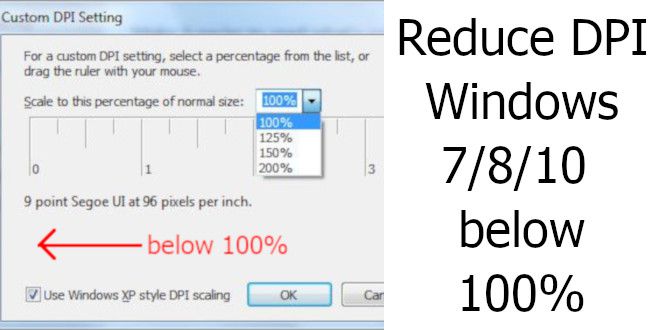
Learn to Reduce DPI Windows 7/8/10 below 100% and decrise icons without raise screen resolution, ideal for old monitors.
This modification allows you to view more items on the screen while maintaining Windows resolution as opposed to what is allowed, which is only increasing the size.
This allows for a sensitive improvement on older displays, with smaller resolutions like 1024 × 768, 1280 × 960, 1280 × 800 and 1440 × 900 that display huge icons on the screen.
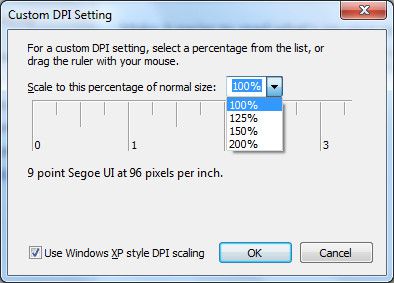
The alternative is to change the registry (Regedit), in Windows 7 gets in one place and in Windows 8 and 10 sits in similar places, we will see how to modify each of them.
In all windows open the Regedit with shortcut of the run Win + R
Then type: regedit
Reduce DPI in Windows 7
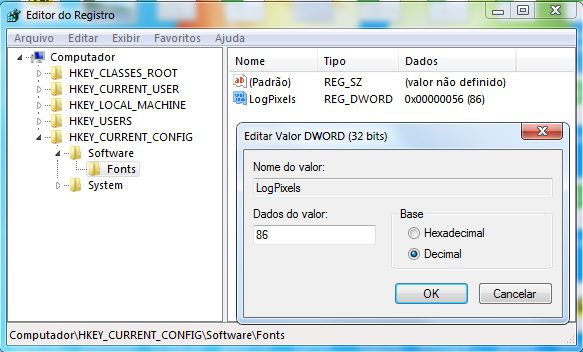
HKEY_CURRENT_CONFIG > Software > Fonts > LogPixels
Change the default decimal value 96 to one below.
For 90 % font size, set to 86 decimal.
For 80 % font size, set to 76 decimal.
Reduce DPI in Windows 8 and 10
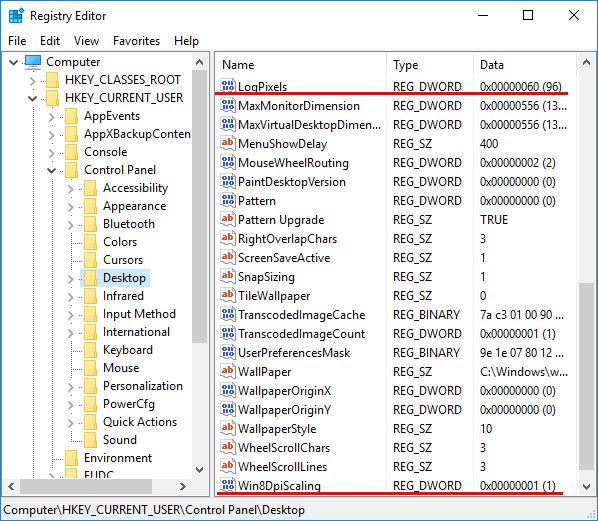
HKEY_CURRENT_USER > Control Panel > Desktop > LogPixels
Change the default decimal value 96 to one below.
But you still need to change another value: Win8DpiScaling
Change from 0 to 1 to allow custom DPI scales
If Win8DpiScaling does not exist, you must create with decimal DWORD and set to 1